Replacing an old hard disk with an SSD is probably the upgrade that, for the same money, changes a computer's everyday feel the most. Yet traditional hard disks haven't disappeared, and not out of inertia: in some roles they remain the most rational choice. To understand when to use one or the other, it helps to know how they work.
How a hard disk works
An HDD contains one or more metal discs, the platters, coated with magnetic material and spun by a motor, typically at 5400 or 7200 revolutions per minute. An arm carrying the heads moves over the surface to read and write data, floating on a very thin cushion of air generated by the rotation.
Its limits come from these mechanics:
- to read a piece of data the head must move to the right track and wait for the sector to pass beneath it: we're talking milliseconds, an eternity for a processor;
- sequential reads of large files are decent, but random access to many small files is very slow;
- shocks and vibration, especially while the disk is running, can damage it.
How an SSD works
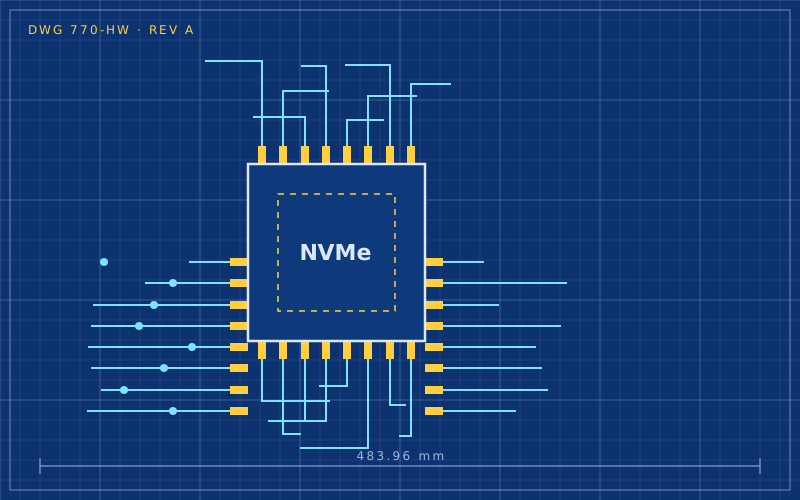
An SSD has no moving parts. Data is stored in NAND flash memory cells, which hold an electric charge even without power. A controller manages the cells, spreads out writes, corrects errors and translates the operating system's requests.
Cells can store a different number of bits:
| Type | Bits per cell | Characteristics |
|---|---|---|
| SLC | 1 | very durable and fast, expensive, now rare in consumer products |
| MLC | 2 | good compromise, increasingly uncommon |
| TLC | 3 | the current standard for most SSDs |
| QLC | 4 | more capacity at lower cost, slower sustained writes and fewer cycles |
Many SSDs use part of the memory as a fast cache. Until the cache fills, writes are extremely quick; when you copy tens of gigabytes in one go, speed can collapse, more markedly on QLC models without dedicated DRAM.
Practical comparison
| Aspect | HDD | SSD |
|---|---|---|
| Random access | slow (milliseconds) | extremely fast (microseconds) |
| Booting the system and programs | slow | very fast |
| Cost per terabyte | low | higher |
| Noise and vibration | present | none |
| Shock resistance | low | high |
| Long-term storage without power | good | not to be taken for granted |
The last point deserves attention: an SSD left unpowered for a long time, especially if heavily worn and kept somewhere warm, can lose data. It's not a good medium to lock in a drawer as your only archive.
SSD lifespan
Flash cells withstand a limited number of write cycles. Manufacturers state endurance in TBW (terabytes written) or DWPD (full drive writes per day). For home or office use, the figures of modern models are rarely a problem: a typical user writes far less than the drive can handle over the warranty period.
The controller spreads writes evenly (wear levelling) and the TRIM command lets the operating system tell the drive which blocks no longer hold useful data, keeping performance steady over time. On modern systems TRIM is on by default; there is no need, and it is in fact counterproductive, to defragment an SSD.
When to use what
In my work the rule is simple: the operating system and programs always go on an SSD. Today it makes no sense to install a system on a hard disk.
The HDD is still a good fit for:
- large archives that are rarely accessed: photos, videos, historical copies;
- backups on an external drive or NAS, where cost per terabyte matters more than speed;
- continuous recording, such as video surveillance, with drives designed for that workload.
A balanced setup for a desktop is a fast SSD for the system and active projects, plus a large hard disk for the archive. On a laptop, on the other hand, an SSD is the only sensible choice.
Signs of a struggling drive
- HDD: new noises such as ticking or repeated clicks, sudden slowdowns, files that won't open. These are signs to take seriously straight away: copy your data before doing anything else.
- SSD: read errors, system freezes, the drive switching to read-only or disappearing from the BIOS. An SSD tends to fail without any audible warning, so backups matter even more.
In short
- An HDD is mechanical and slow at random access; an SSD is electronic and extremely fast.
- TLC is the standard; QLC costs less but slows down during long writes.
- For normal use, the lifespan of a modern SSD is rarely a concern.
- System and programs on SSD; archives and backups can also go on HDD.
- Neither replaces a backup: both can fail.